The translation service Deepl released desktop programs for Microsoft's Windows and Apple's Mac OS operating system on September 12, 2019.
DeepL Translator was launched in August 2017 to provide better translation services than established translate services such as Google Translate or Bing Translate. The service launched with a limited number of supported languages -- only eight languages that you could translate -- and the promise to improve supported languages and the service in the future.
Options to translate documents using DeepL were integrated in July 2018 and support for new languages was added as well.
DeepL for Windows and Mac extends the service once more. The desktop programs integrate the translation service right on the desktop giving users options to translate text directly.
We took a look at the latest DeepL for Windows. The program is marked as beta.
DeepL for Windows
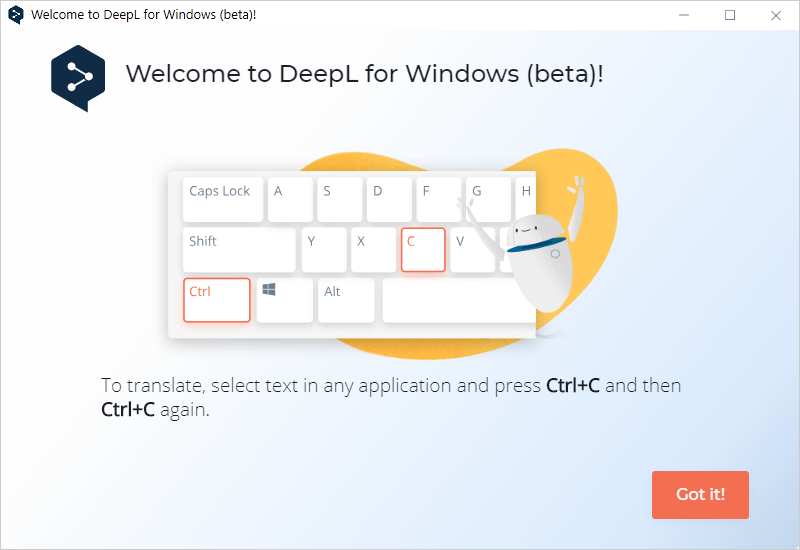
DeepL for Windows displays a short help screen when you run it on your system. Note that the application requires Internet connectivity to work.
It maps its translate functionality to the Ctrl-C key. Ctrl-C copies selected text to the clipboard and while that functionality remains untouched, pressing Ctrl-C twice pushes the copied text to the DeepL interface where it is translated automatically.
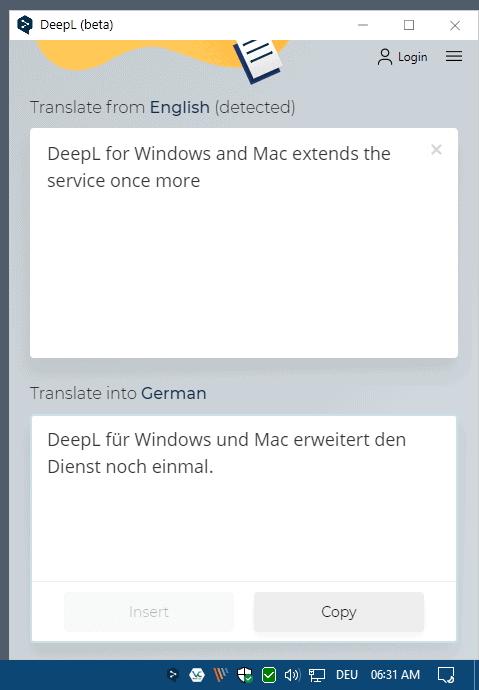
You may change the target language in the DeepL interface to any of the supported languages.
DeepL adds an icon to the Windows System Tray when you run it which you may use to bring up the program interface. You may type or paste text into the interface manually at any time to have it translated right then and there.
DeepL may display alternative translations for individual words, phrases or sentences. A click on a word displays synonyms in a menu.
Click on Menu and select Settings to open the preferences. There is not much to see here apart from options to change the notifications settings, exclude certain programs from the quick translation functionality, or changing the trigger.
The beta offers no option to disable notifications permanently. DeepL displays a notification whenever you use Ctrl-C. While you may pause the notification for one hour or until restart, you won't find an option to disable them permanently. The notification is helpful in the beginning as it reminds you that you may translate by pressing Ctrl-C again or by clicking on the notification popup but once you know that, it becomes somewhat annoying that you cannot disable it.
You can exclude programs that run only. Just select the plus icon in the settings and select one of the programs to block DeepL from interacting with it.
Closing Words
DeepL is my go-to translation service for any of the languages that it supports. The introduction of desktop programs for Windows and Mac adds a new option to the service that desktop workers may find useful as it speeds up the translating significantly.
Instead of having to keep the DeepL website open to translate content, it is now a matter of pressing Ctrl-C again on Windows to translate the text. The copy to translate function worked without hitches during tests; DeepL's desktop program picked up copied text from any of the applications that I ran on the desktop and translated it instantly.
I wish the developers would add an option to disable the notification permanently though; it displays even if you just copy text for use in another program and if you do that often on your desktop, you may find that highly annoying.
Now You: which translation service do you use, and why?
Ghacks needs you. You can find out how to support us here (https://ift.tt/2pxfu0k) or support the site directly by becoming a Patreon (https://ift.tt/2YEosgX). Thank you for being a Ghacks reader. The post DeepL Translator desktop programs for Windows and Mac appeared first on gHacks Technology News.
Post a Comment