Picture Window Pro is a freeware photo editor for Windows computers that offers a lot of post-processing options. In this review, we are going to take a look at what the program has to offer and whether it is a suitable alternative to established photo editors.
The program has a minimal learning curve though the interface may suggest otherwise on first glance. Most professional photo editing programs look complicated on first glance as well thanks to the sheer number of options they support.
First the basics: Pictures Windows Pro is free for personal and commercial use. It is compatible with all recent versions of the Windows operating system. Happy users may donate to the developer to support development of the application. The program has a size of about 200 Megabytes when you download it from the developer site.
Picture Window Pro
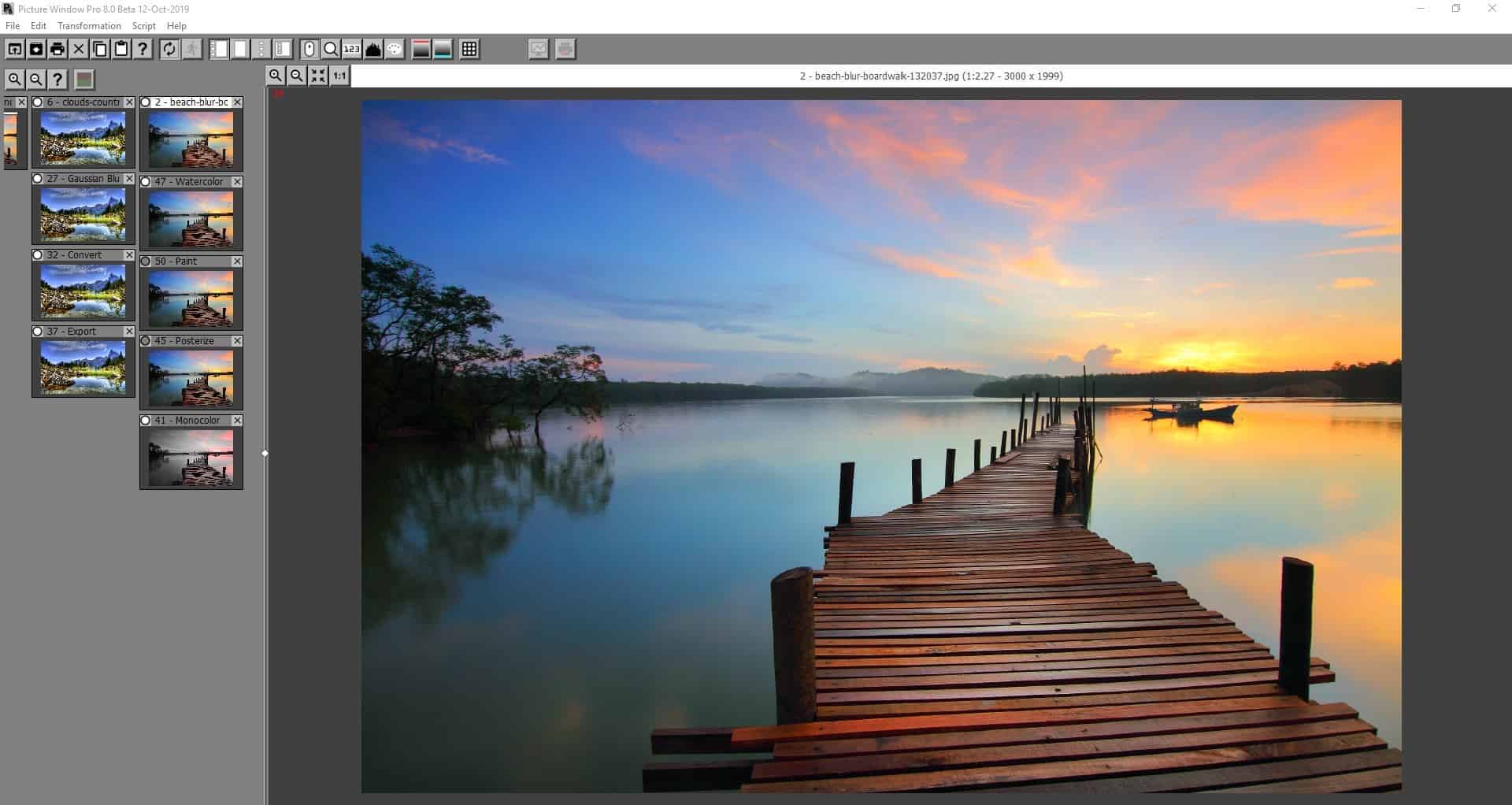
Picture Window Pro is an image editor for Windows that functions as an image browser as well. You may associate popular image formats, e.g. BMP, PNG, JPG, JPEG, GIF, TIF, TIFF from RAW images, or DNG (requires extra file) with the program to browse them using the application. It may not be the fastest when it comes to opening images, but it does open images quite quickly.
The two-pane interface displays a sidebar on the left and the main image pane in the middle and right; there is a menu bar and a toolbar at the top of the screen to access functions.
When you start editing a photo in Picture Window, you will notice that it displays a series of images on the side-panel. The top of this panel contains the main image of the tree. Opening a new image will create its own tree and every edit that you make is called a transformation; each image in the branch contains the version of the image that you edited in the step which means that it is easy to go back a step or two without losing all edits in the process.
How to edit images in Picture Window Pro
Once an image is loaded, click on the Transformation menu and choose an effect that you'd like to apply to it. The selected tool's window pops-up in the corner of the screen along with its corresponding options. Most of these have a smaller image preview window.
For example take a look at the image below; I have applied Gaussian Blur to the picture. It is more noticeable in the background, near the tree lines and the grass. The water looks a bit frosty too.
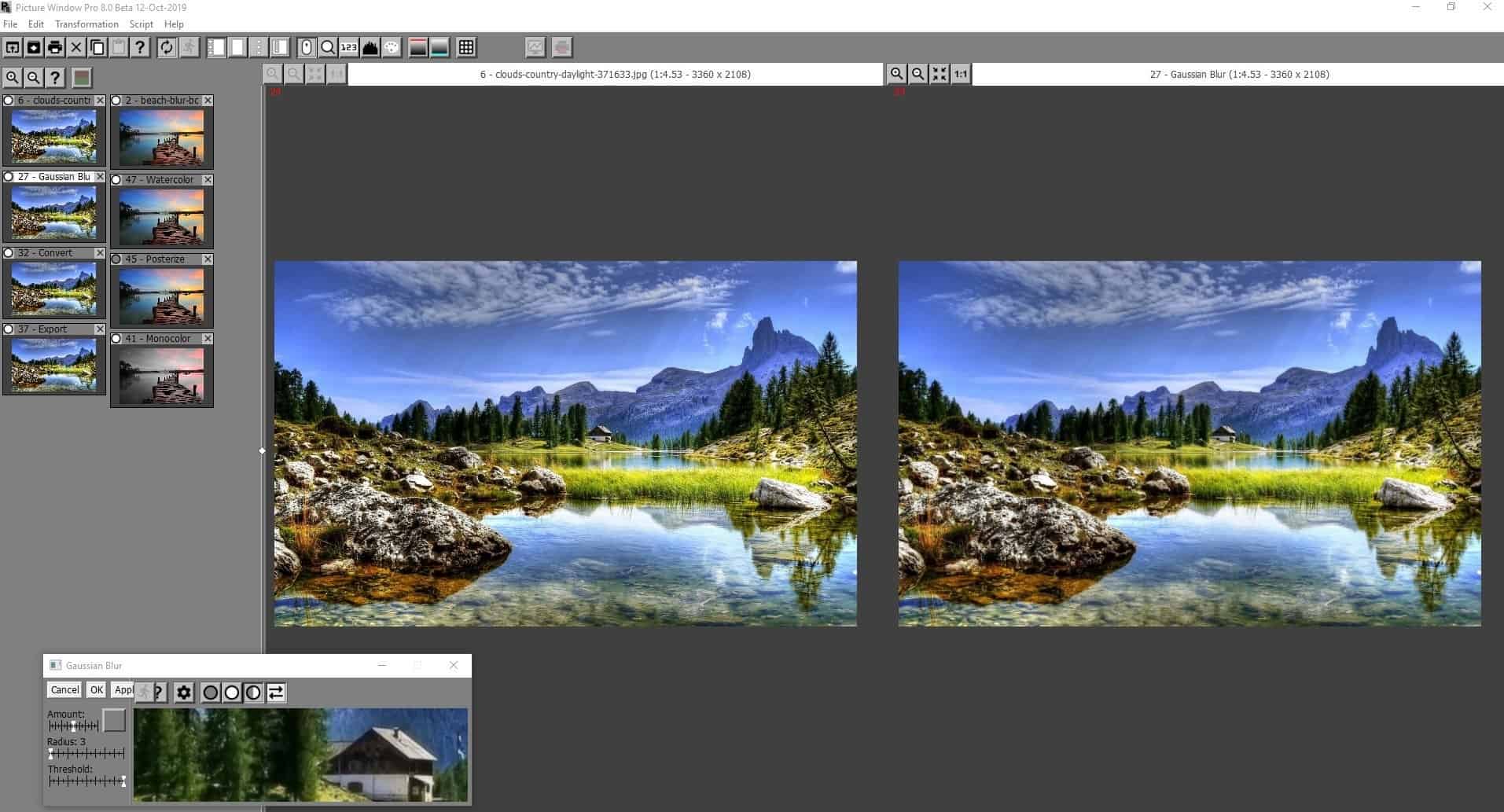
Clicking on the gray circle displays the source image, the white circle switches to the output image, while the half-gray half-white circle switches the main preview pane to a side-by-side comparison preview (like a before and after pane). There is a similar circle on each image in the side-panel. Click on the circle to disable a transformation (gray circle), click again to re-enable (white circle) it.
You can add side-branches to edit the same image, apply various effects to it and see how it looks like. To do so, right-click on the side-panel and add a new branch.
Transformation tools
There are a lot of transformation tools available in Picture Window Pro. It will take too long to explain the functions of each, so I'm just going to list the tools, and some of their sub-options.
- Blur - Blur/Blur more, Linear, Gaussian, Median, Motion, Precision Gaussian, Zoom
- Color - Chromatic Abberation, Color Balance, Monochrome, Saturation, etc
- File - Export, Print and Slideshow
- Geometry - Crop, Level, Layout, etc
- Gradient - Linear, Multipoint, Oval, Sweep
- Gray - Adjust, Brightness, Denoise, etc
- Sharpen - Advanced Sharpen, Bilateral Sharpen, Highpass, Sharpen/Sharpen more, Unsharp mask
- Special Effects - Drop Shadow, Emboss, Monochrome etc
- Test Patterns - Checkerboard, Color Chart, Color Wheel, etc
- Tool - Clone, Line and Arrow, Paint, Redeye removal, Smudge, Scratch removal, Speck removal
The Bypass tool skips the previous edit (same as the circle tool in the side-panel). Other tools of the program include a text tool, composite, filters, masks, frames, transparent PNG and more.
The Compare tool opens the image in a window split in half that you can drag left or right to view a direct comparison of the source and output image. The Convert tool can convert the image from 24-bit color to binary or black-and white, or even 48-bit color.
Some of the useful options in the toolbar include a magnifier tool, pixel readout, histogram, color palette, and grid.
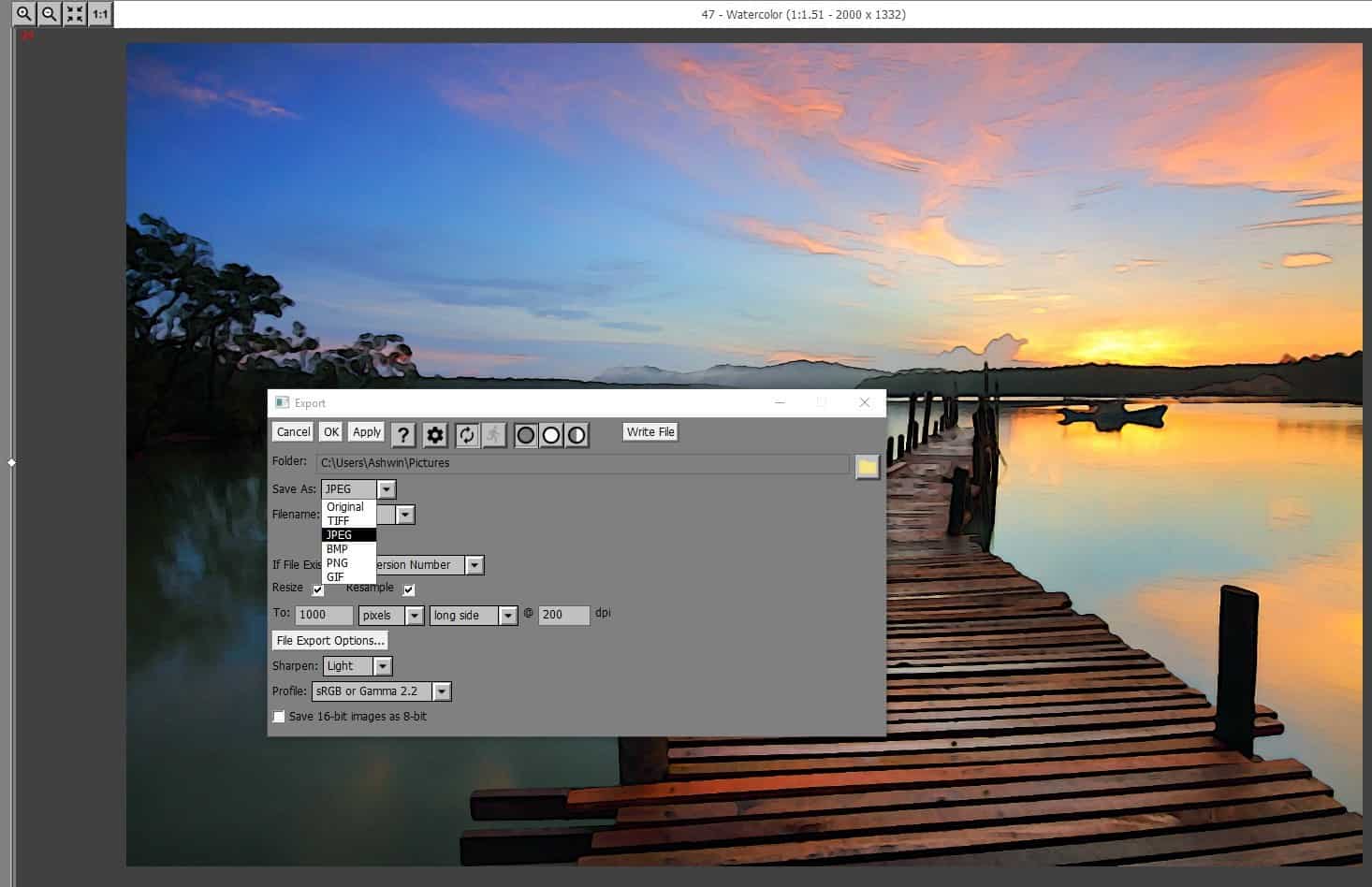
You can export the final image in the same formats as the ones the program can open. The export option in the program lets you resize the image and sharpen it with a few clicks as well.
Despite the Pro in the name, the software is actually freeware. So why the Pro? It used to be a paid application, but was made free.
Picture Window Pro is not open source. There is a zip archive on the official website, but it is not a portable version. The developer uploads the latest beta version of the program's executable (.EXE) in a ZIP. You can download this to update your current version's EXE, without downloading the 200MB+ full installer.
Closing Words
Not everyone has steady hands like a photographer. Sometimes we may click a great looking photo, but it could get ruined if its slightly tilted or a blurry object. I usually use Snapseed on my phone for light editing, but photo editing is best suited for a bigger screen with finer controls. Whether you just want to add cool effects to photos, or want to perform some advanced edits, Picture Window Pro handles this well.
Thank you for being a Ghacks reader. The post Picture Window Pro is a free and powerful photo editor for Windows appeared first on gHacks Technology News.
إرسال تعليق