Windows Services are core components of the operating system that are used to power Windows features and used by programs.
Third-parties may add services of their own to Windows and these may be set to autostart with the system. While that is necessary at times for the program to run, it may also cause issues such as increased memory usage.
You can use the built-in Services.msc tool to disable services from auto-starting, by either disabling them or setting them to start manually. What if you had more control over this? This is where Service Trigger Editor can be helpful.
It is a freeware tool that you can use to view or modify the triggers that start or end a Window Service. Instead of services running all the time, they will only run when you want them to.
Service Trigger Editor
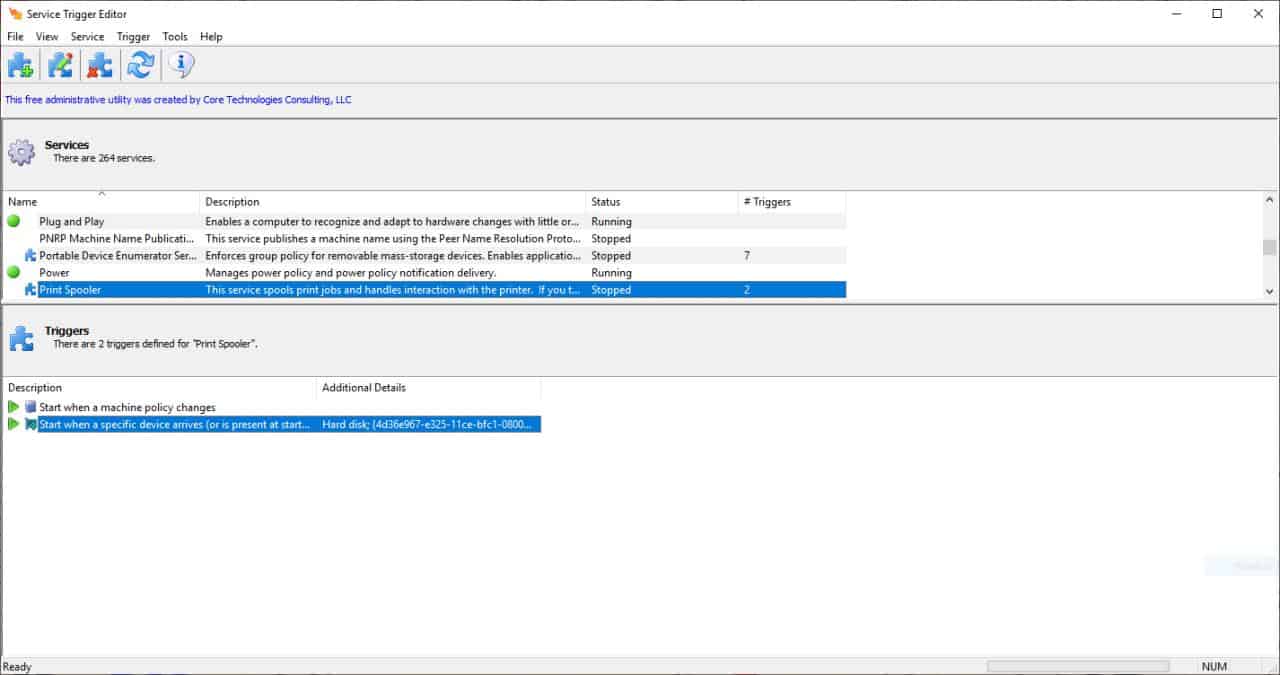
Service Trigger Editor has a very simple GUI with a menubar, toolbar, statusbar, and two panes. The Services pane lists all services that are available on the system.
Each service is listed with its name, description, status (running or stopped), and the number of triggers that are associated with it. The status is also indicated by a green circle (active) while a blue circle indicates that it contains a trigger.
Selecting a service displays its corresponding trigger in the trigger pane.You can hide services which don't have a trigger from the View menu. The toolbar and status bar can be hidden from view and you can right-click on any trigger to start or stop it.
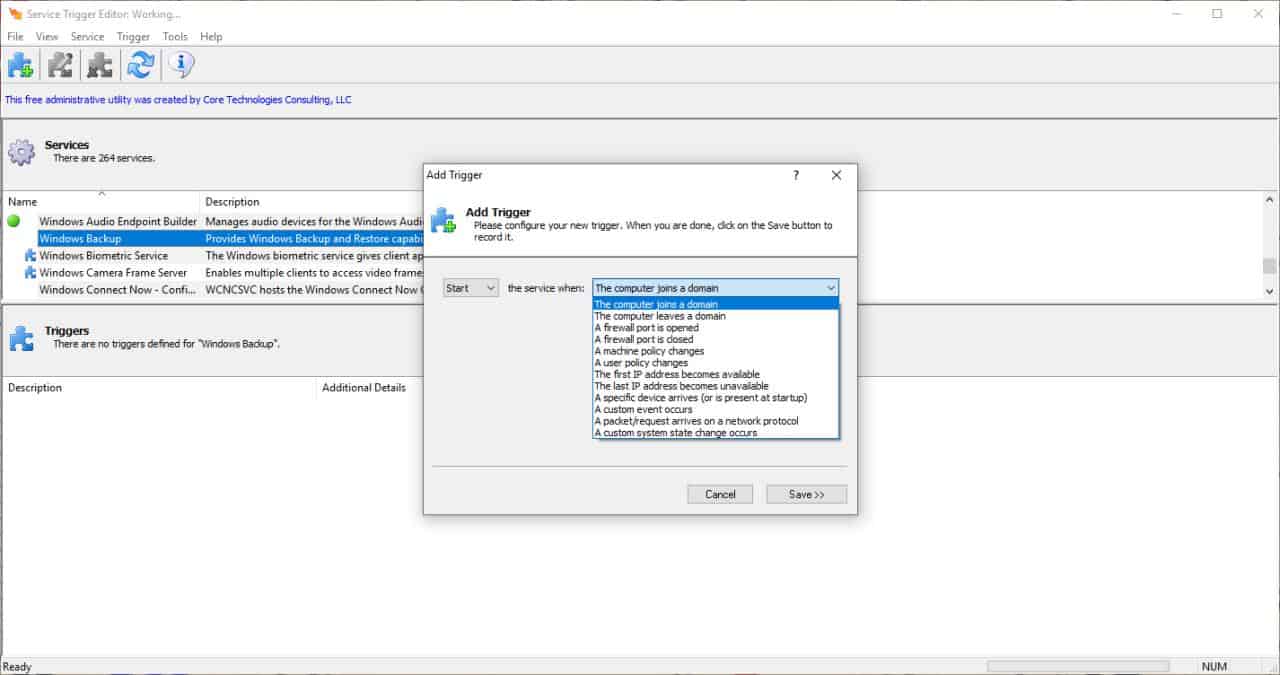
You can create a new trigger by clicking on the Add Trigger button or from the Trigger menu. You can set a trigger to start and stop based on specific conditions. Here are a few examples:
- A computer joins a domain or leaves one
- A firewall port is opened or closed, etc.
- A machine policy or user policy changes.
- The first IP address becomes available or unavailable.
- A Specific device arrives. (when you plugin a hard drive, sound device, etc).
- A packet/request arrives on a network protocol.
Set the trigger to start or stop when the condition is met and click on Save to apply it. You can get the the GUID of a device from Windows' Device Manager (Properties > Details > Class Guid).
Let's take a look at an example
I want to start the Print Spooler service when I plug in my HP X705W USB 3.0 flash drive (let's pretend it contains documents that I wish to print). So, I will select Print Spooler and choose to add a trigger. Now I select the "Specific device arrives" as the trigger condition and enter the value I got from device manager as the string and click on save. That's easy, isn't it?
Tip: A service can have multiple triggers.
Custom triggers (not recommended for average users)
You can set your own trigger condition but it's not going to be an easy task. Custom triggers can be set for the following
- A custom event occurs.
- A custom system state change occurs.
To do this, you'll need the Event provider's GUID and the values for custom string, binary, level or keyword.
The tools menu can be used to access Windows' Event Viewer, Services, Computer Management and Task Manager.
Service Trigger Editor is free but not open source. It requires no installation. The program is compatible with Windows 7 and above, and also supports Windows Server 2008 and newer.
Thank you for being a Ghacks reader. The post Run Windows Services only you want them to with Service Trigger Editor appeared first on gHacks Technology News.
Post a Comment