SterJo Task Manager is a simple freeware process manager for Windows. At first glance, it looks almost like Windows' built-in application.
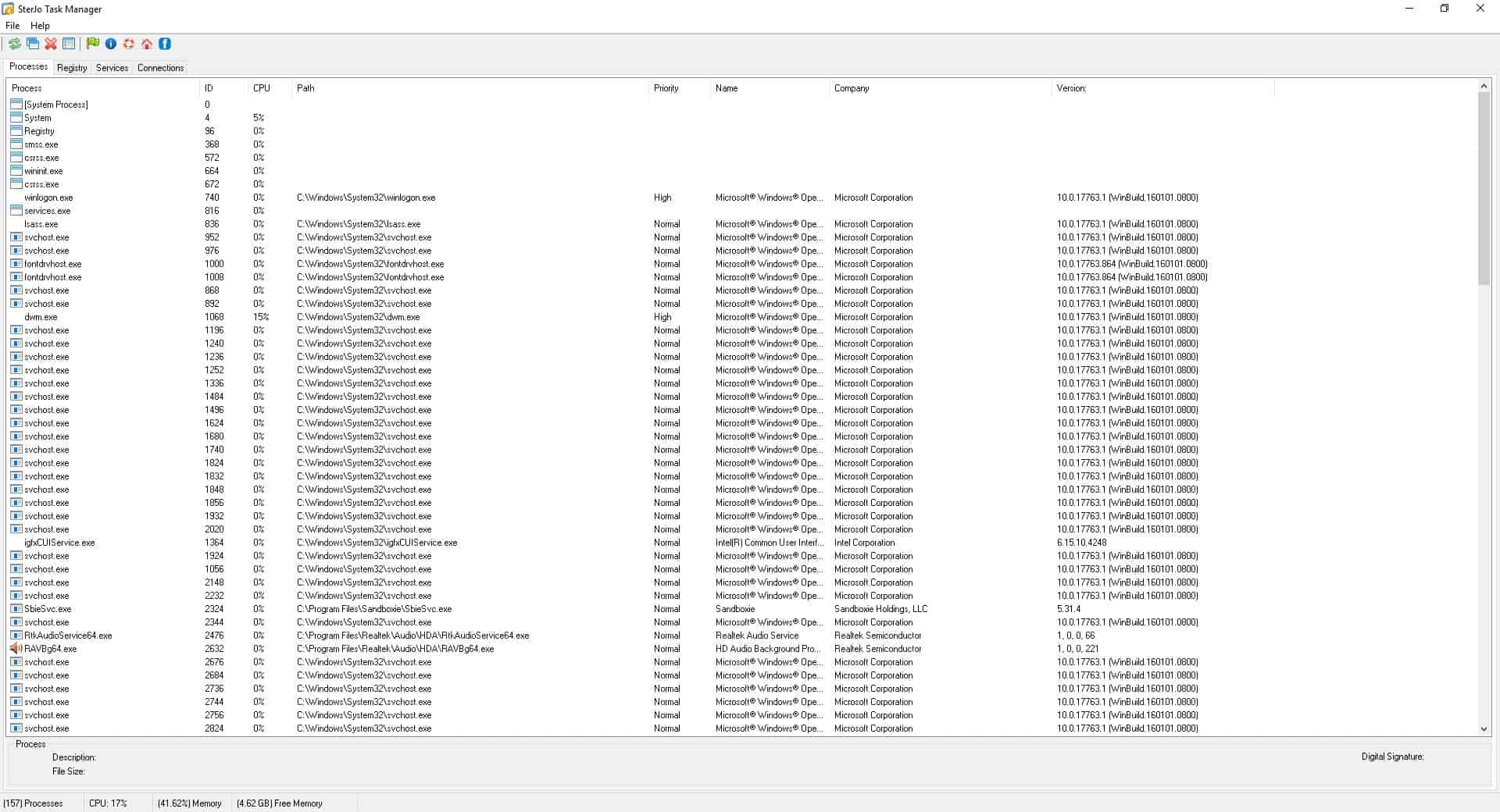
The program's interface lists four tabs: Processes, Registry, Services and Connections
"Processes" lists all running programs on your computer. You get the Process ID, CPU usage, check the folder location of the executable, process priority, and the version number of each application that's listed. The Task Manager also displays the name of the process' owner, i.e. which application started the process, and the name of the company that developed the programs. Right-click on a task to kill the process, or to set its priority.
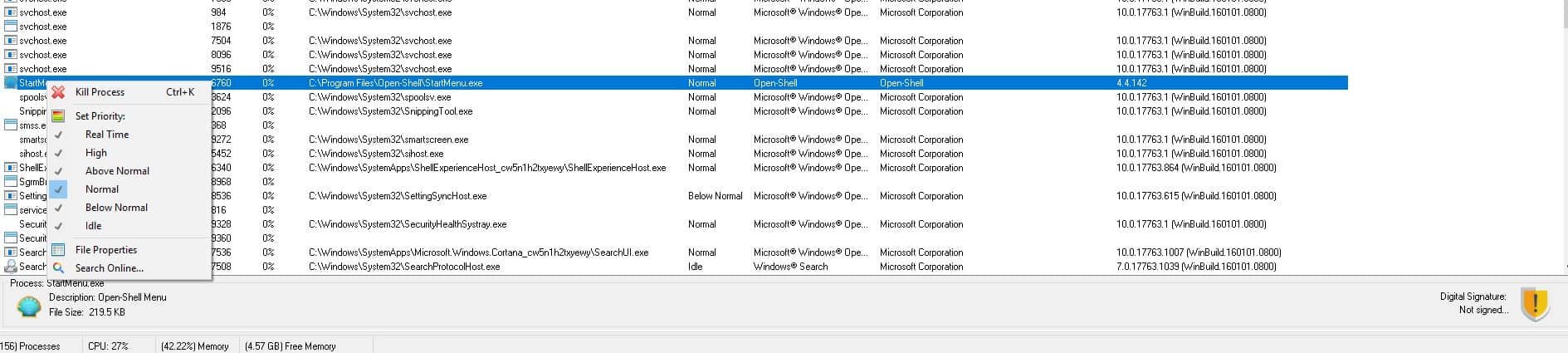
There are two options that are common across all tabs: File Properties and Search Online. The file's properties menu item opens Windows' properties dialog for a selected process. The "search online" option opens a new browser tab and looks up the name of the task using the Google search engine.
The toolbar at the top of the Processes tab can be used to refresh the list, open a new process, end a task or view the properties. The small tab below the pane displays a selected process' name, icon, description, file size, and tells you whether it is digitally signed or not. The status bar at the bottom displays the total number of running processes, CPU usage, memory usage and the amount of available free memory.
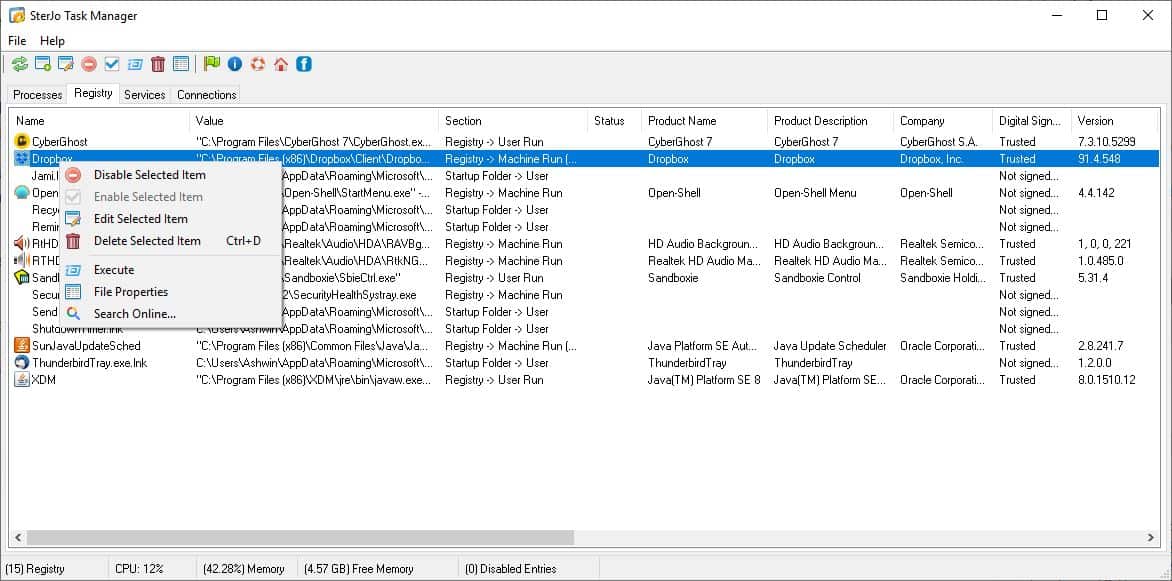
The Registry tab in SterJo Task Manager lists all Registry items that are set to run at boot and shortcuts in the startup folder. Use the context menu or the toolbar at the top to edit, enable/disable, or delete a selected item. You may also execute an item to run the program instantly.
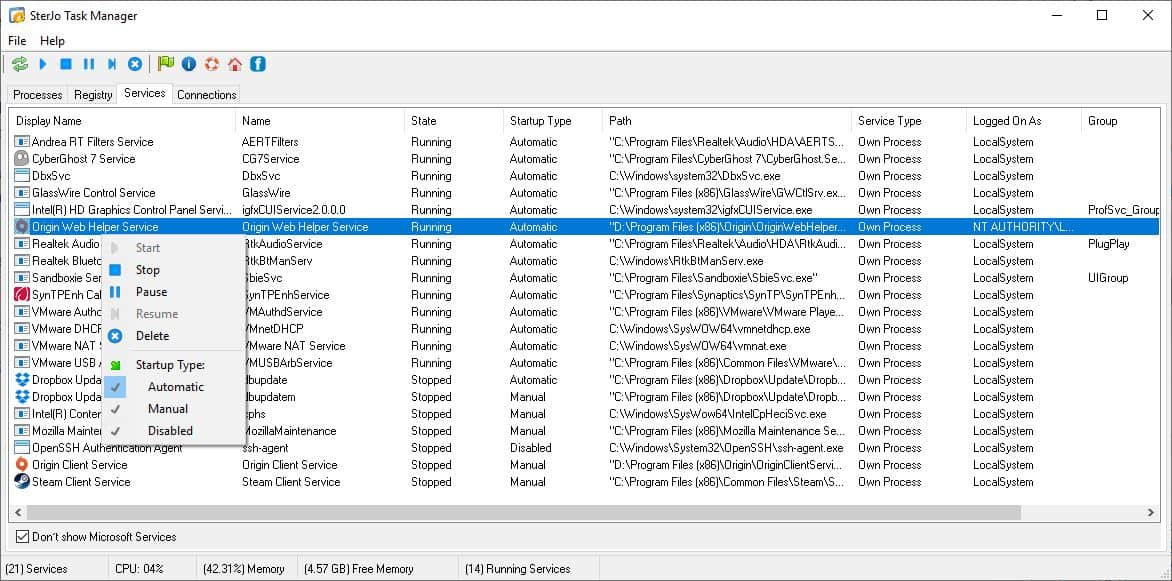
The Services Tab displays all services available in Windows, their name, path, and some additional information. It allows you to Pause, Resume, Stop or Start a selected service. The delete option can be used to remove a service, I would advise caution while using this. You should enable the "Don't show Microsoft Services" option, so you don't tinker with any system related services. The tab can also be used for changing the start-up type for each service, i.e., whether it should automatically start, or manually or if it should be disabled.
The Connections tab is my favorite feature in the program. As the name suggests, it displays the network connections made by each program and service on your computer. This includes the file name, the protocol used to connect, the local address, port, remote IP address, remote port, and the full path of the executable. This also includes the status of the connection, i.e., whether it has been established or if the program is listening (usually on the local port).
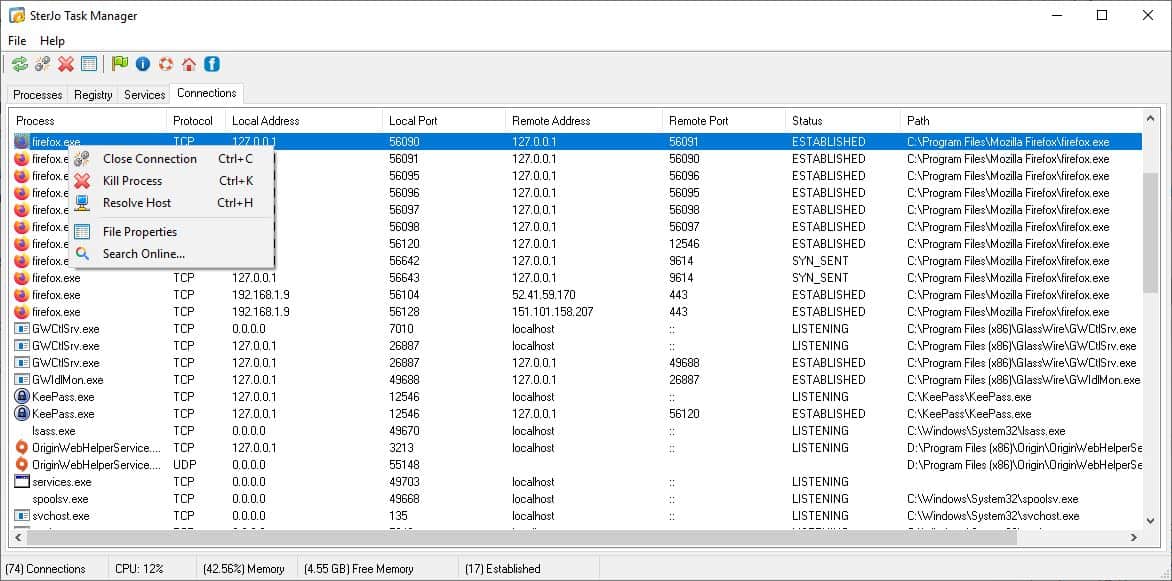
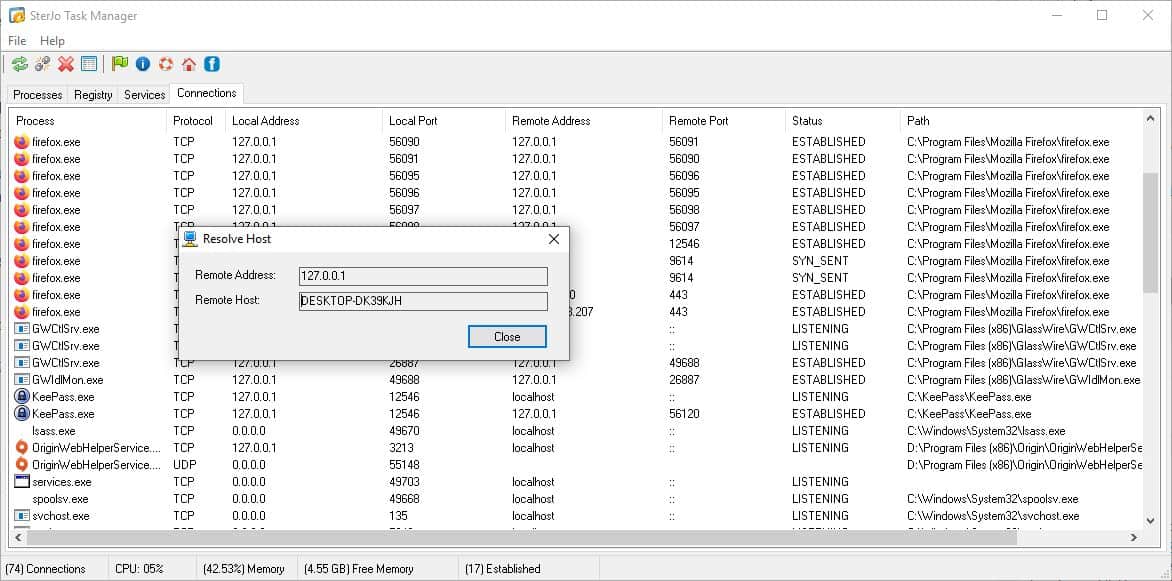
The right-click menu can be used to terminate a connection, end a process or resolve the host IP address. That's very useful in case you want to see which server a program is trying to connect to. And if you find anything suspicious, you can block it using a Firewall.
When minimized, the program sits on the system tray. SterJo Task Manager is also available in a portable archive. The program runs on Windows XP and above.
It may not have the features of advanced process managers like Process Explorer, but SterJo Task Manager is still way better than the default Windows Task Manager. I would have liked an option to open the file location directly, but the Path and File properties options exist, so there's that.
Thank you for being a Ghacks reader. The post SterJo Task Manager is a simple freeware process manager for Windows appeared first on gHacks Technology News.
إرسال تعليق