Video editors, photo editors, converters, etc., most of us would've used one or more of these programs at sometime or the other. Shutter Encoder is a freeware application that falls into the category, so let us take a look at the application for Windows.
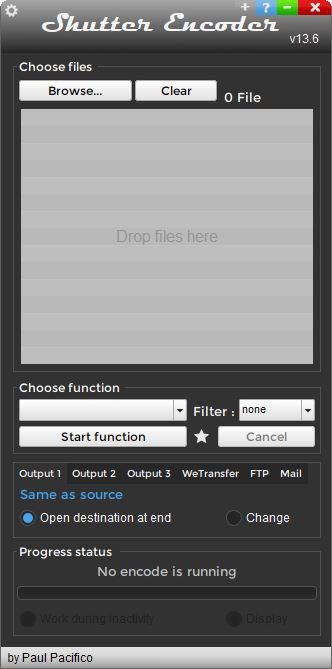
It uses a collection of open source tools: 7-zip, bmxtranswrap, dcraw, dvdauthor, ffmpeg, exiftool, mediainfo, mkvmerge, tsMuxer, VLC, youtube-dl and XpdfReader and makes the features from all these tools accessible from a single interface.
The program's main screen is rather compact: use the browse button at the top to select the files that you want to convert or edit. The application supports audio, image, and video files. The content that you picked will be displayed in the pane below the buttons. Right click on the files you have added, to create a ZIP archive, batch rename them, view their information, etc.
Pick an edit/conversion method from the "Choose Function" drop-down menu.
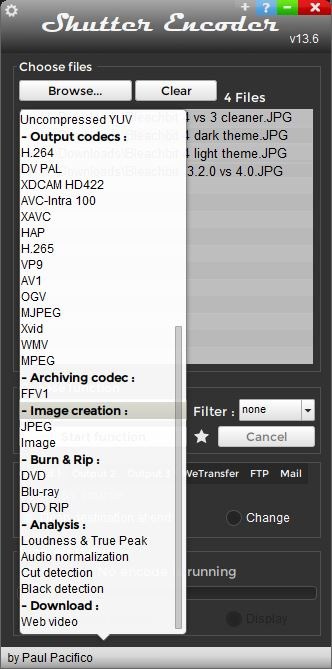
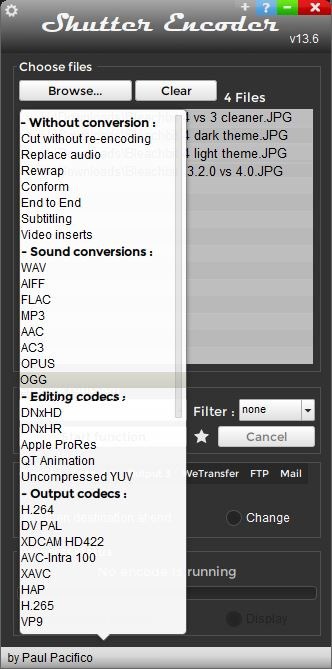
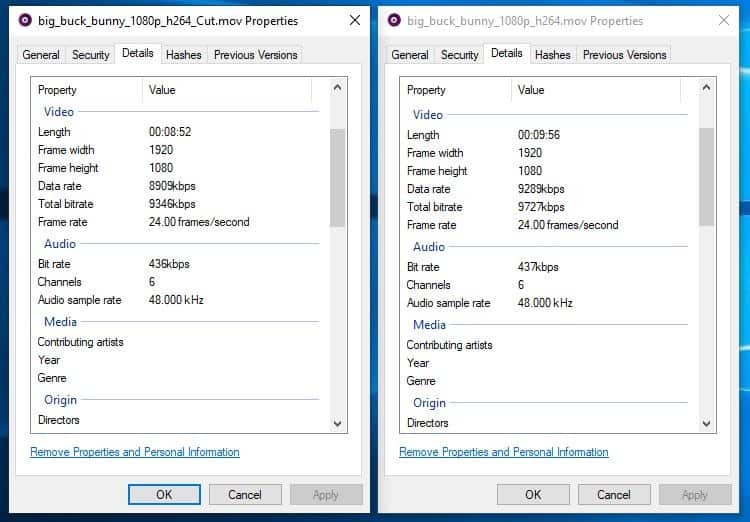
The first set of options is labeled "Without conversion". Selecting the cut without re-encoding allows you to edit a video, by selecting the start and end point, which makes it useful for trimming a video. The right pane contains options to set the time code and the audio settings.
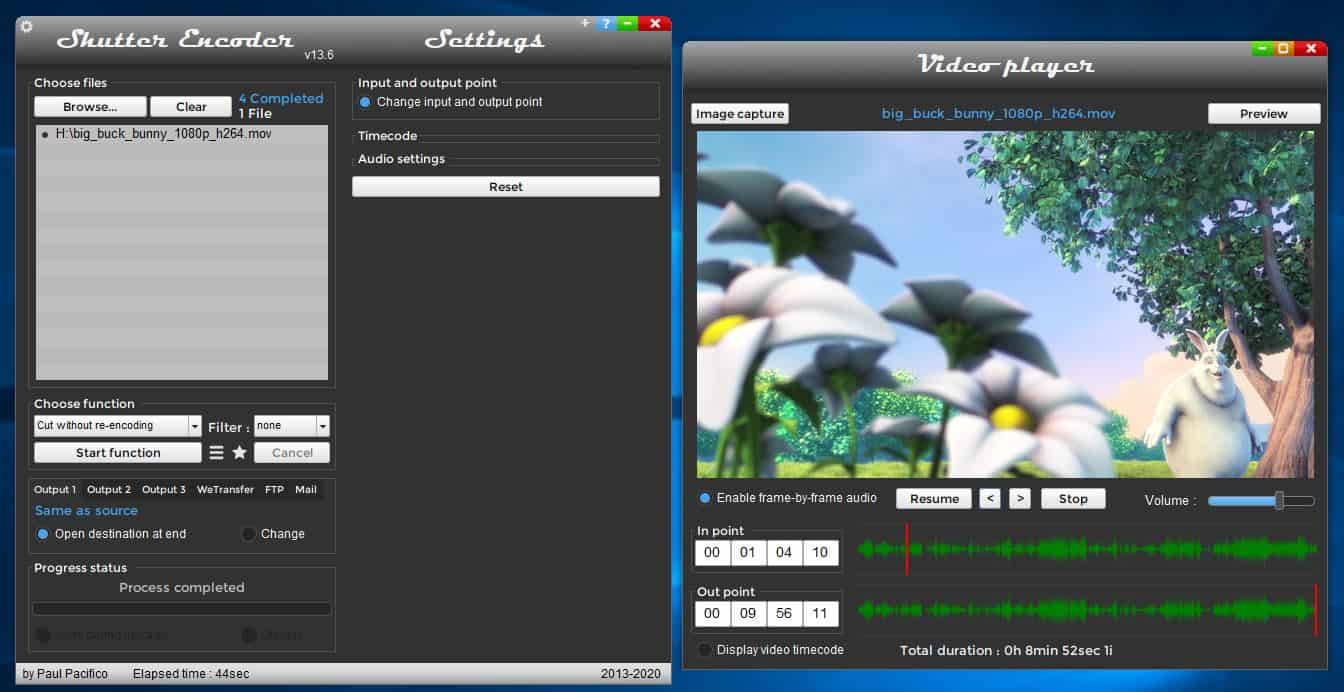
The video player can be used to play the video, capture a screenshot, select the start and end points. Use the timeline or the arrow buttons next to resume/stop or the In point and Out point fields to precisely select the frames for cutting the video.
Substitute the audio of a movie with a different one using the Replace Audio option.
Change videos to a different container using Rewrap, you can choose from MP4, WV, AIF, M4A, AVI, MP4, MOV, MKV, MTS, MXF, MPG, JPG, PNG, TIF. The program supports conforming videos, add subtitles and video inserts. Shutter Encoder is capable of converting audio files to the following formats: WAV, AIFF, FLAC, MP3, AAC, AC3, OPUS and OGG.
You can use these codecs for editing: DNxHD, DNxHR, Apple ProRes, QT Animation, Uncompressed YUV. Output codecs that it supports include H.264, H.265, VP9, DV PAL, XDCAM HD422, AVC-Intra 100, AV1, OGV, MJPEG XAVC, MPEG, WMV, HAP, Xvid, and the FFV1 codec for archiving.
That's not all, Shutter Encoder can be used with images. Say for example, if you have imported some pictures for editing, you can select the Image Creation option and choose to save pictures in the PNG, TIF, TGA, TBX and BMP image formats.
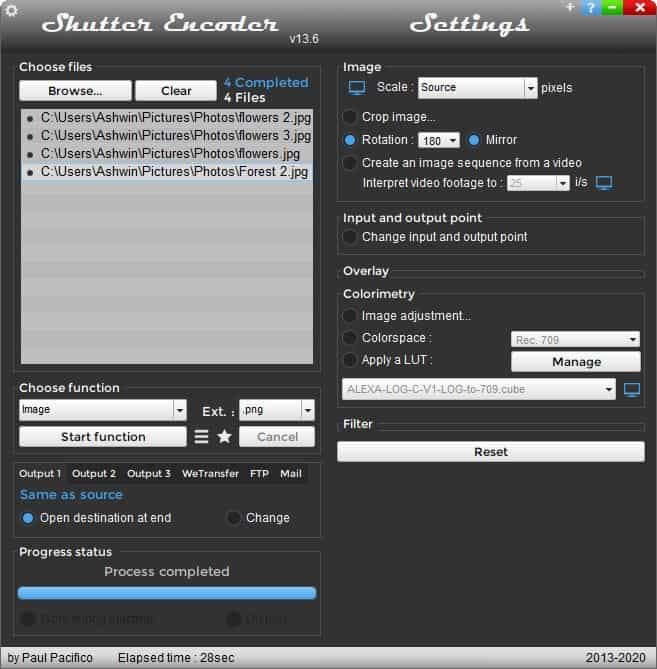
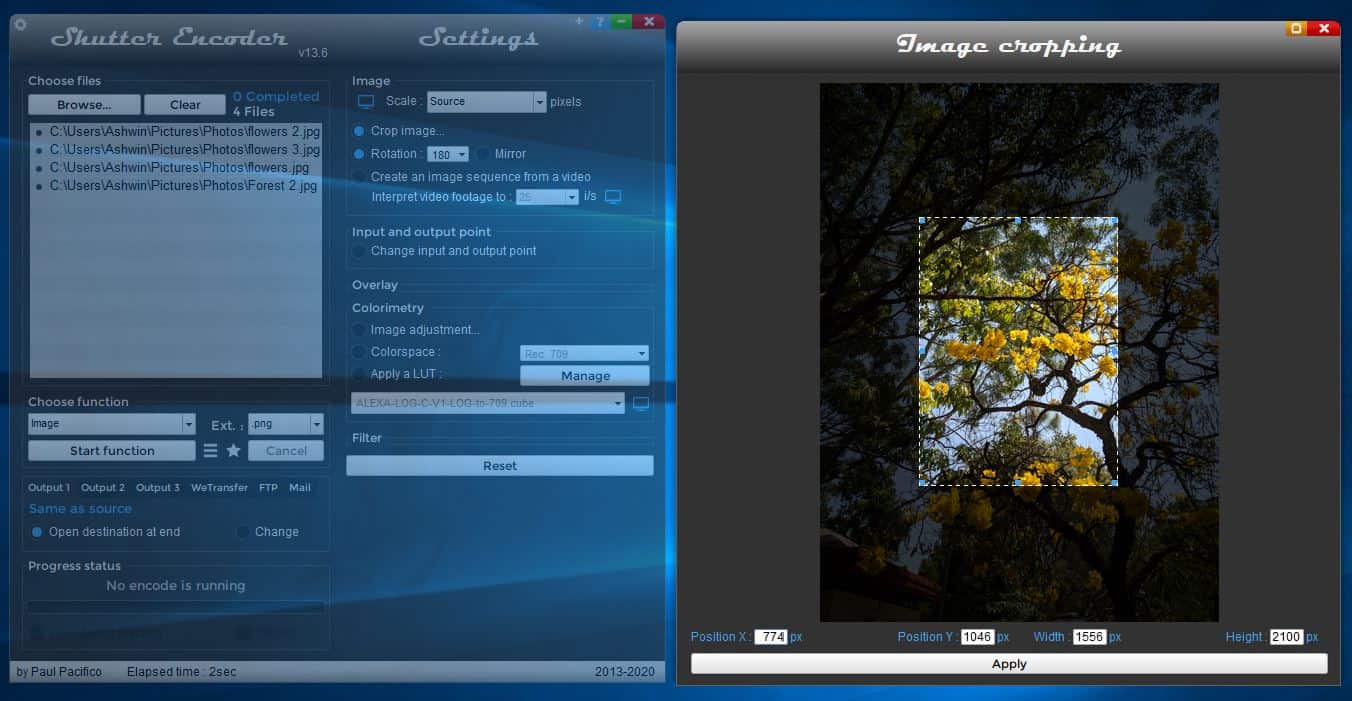
The right pane of the Image Creation function has some editing options that let you scale, crop, rotate, mirror the image or adjust the colorspace and color correction. You can even create an image sequence from a video using Shutter Encoder.
If you have a DVD or Blu-Ray player, you can use Shutter Encoder to burn and rip video discs. In addition to this, you can perform analysis of audio files using the Loudness and True Peak, Audio Normalization, Cut Detection and Blank Detection tools. The last option in Shutter Encoder allows you to download videos from the internet.
Once you have selected an option in the program, click on the "start function" button to process it. Before doing that, you can select the destination folder where the output will be saved. You may choose a WeTransfer account, an FTP server to save the files. Optionally, set the program to email you a summary of the encoding process.
Shutter Encoder will open the output folder, plays a notification sound and places a widget on the desktop, when it has completed the process.
Thank you for being a Ghacks reader. The post Edit, convert and encode videos, audio and images with Shutter Encoder appeared first on gHacks Technology News.
Post a Comment